Monday, October 14, 2019

macOS Catalina Is Causing Issues with Select eGPUs

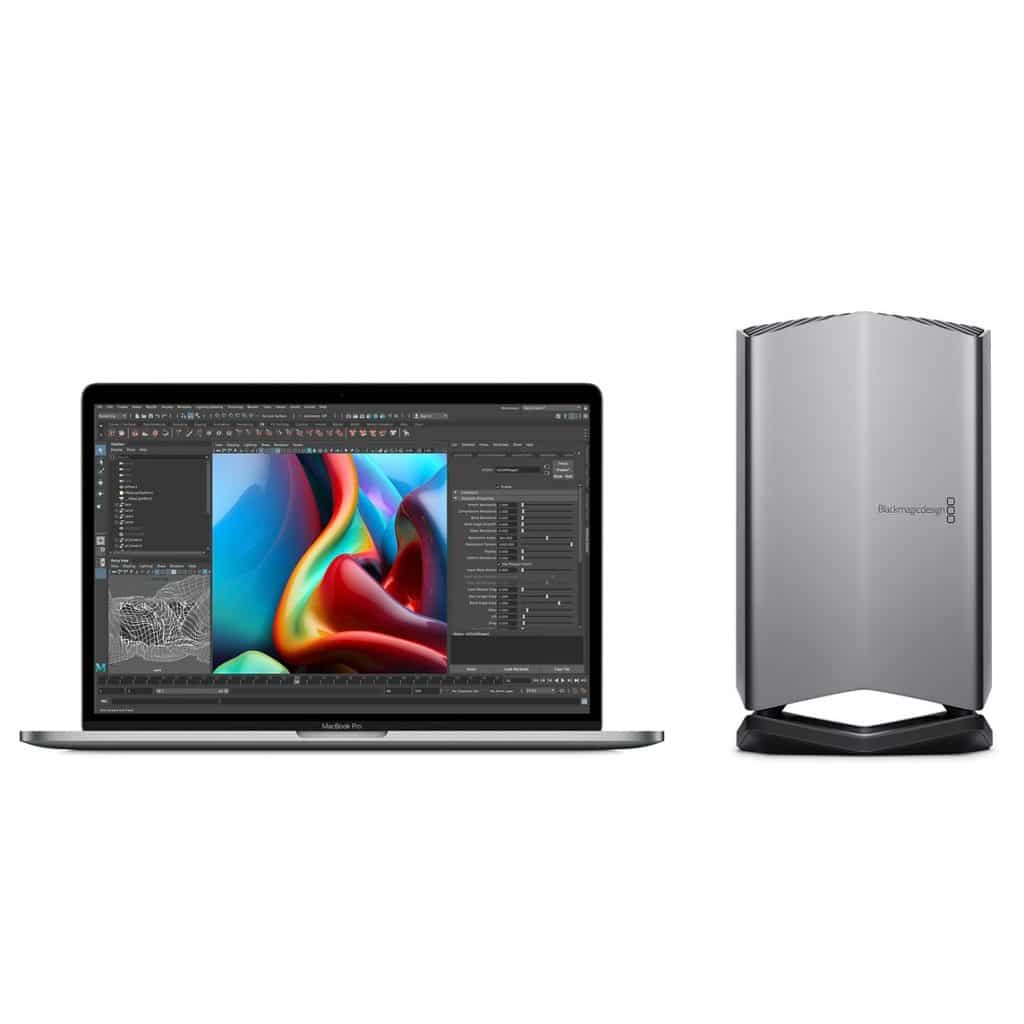
The Blackmagic eGPU Pro
macOS Catalina is apparently breaking many apps. Users have reported that they are facing problems after updating to macOS Catalina with eGPU. Their Macs are not able to drive eGPU as before. Needless to say, the issue has something to do with the Catalina update.
Some users also reported an issue wherein they were unable to boot up with a display connected to the eGPU unit. However, the Mac will start without a fuss when connected directly to an external monitor. Meanwhile, some users are reporting that their Mac is freezing. We have come across many posts in Reddit wherein Catalina users are facing compatibility issues with apps like Photoshop.
Typically the compatibility issue occurs with AMD Radeon 570 and Radeon 580 series cards on Mac mini. On the other hand, AMD Vega GPUs are working fine. Most importantly there is no way you can fix the issue (until and unless you are prepared to ditch your eGPU unit.) Interestingly even eGPU’s mentioned on Apple’s official support are exhibiting compatibility issues.Also Read:Download All iCloud Photos to PC/Mac

As of now, there is no way you can fix the issue. All we can do is wait for Apple to issue a patch. At this point in time, the company has not commented or released a statement on the issue. Apple has stopped supporting 32-bit apps starting from Catalina and perhaps this has something to do with the issue at hand.
So here is the catch, the issue is affecting only select eGPU models. Apple might fix the issue if popular eGPU models are affected, however, users are worried that the issue might not be fixed if it is affecting a handful of less popular eGPU’s. That being said, the issue is widely reported across many eGPU models and hopefully, Apple will fix the same.Tips:
Recover Photos, Videos, Contacts, Messages, Notes, Call History & Calendar from iPhone. Recover Lost or Deleted Data from Your iPhone in Just a Few Clicks. Free Download Now. Download Free Trial Now. Do-It-Yourself Software. 3 Million+ Happy Customer.
Also Read:h33t proxy

[via eGPU.io]

Sunday, August 4, 2019

How to Download Free Music on iPhone and iPad


You might be under the impression that there is no way to download free music on an iPhone or iPad. That’s just not true anymore. As long as you know the source of the music online, you can use many apps (and with iOS 13, even Safari) to download and play music. You can even organize your own music collection and share it with your favorite third-party music player. Here’s how to download free music on the iPhone and iPad.
Download Music for Free on iPhone and iPad
1. eSound Music


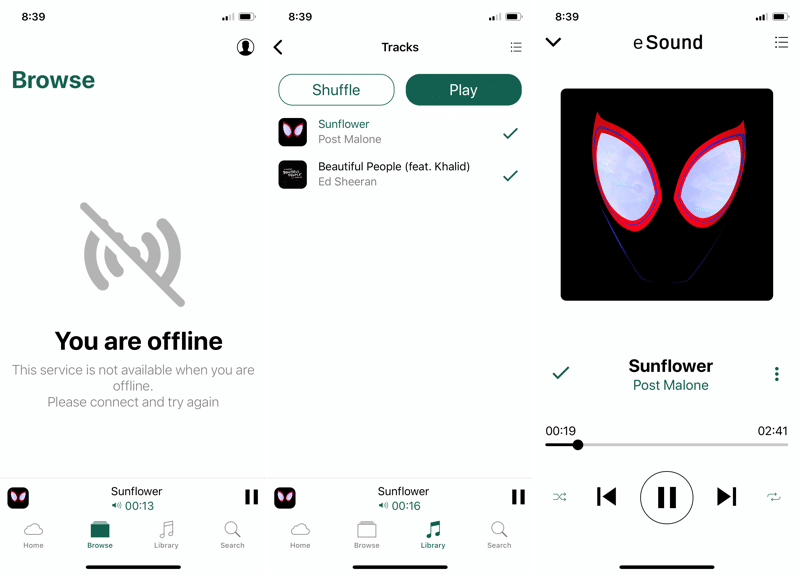
eSound is one of the few apps on the App Store that gives you access to a huge library of popular songs. And you can download songs for offline use. The only issue is that the app is ad-supported and has a lot of video ads. But there’s a way around that. Find and download the music and then listen to it offline.

You’ll have to create an account before you can start using the app. Then search for a song and tap on it to start playing. Tap on the + button to add it to the Library. The button will now change to a Download button. Tap on it to save the song offline.

Download: eSound Music (Free)
2. Documents


Documents is the best third-party download manager for iPhone. Best of all, it’s free, ad-free and is developed by a trusted company. You can use Documents to download anything. And then play it right inside the app.

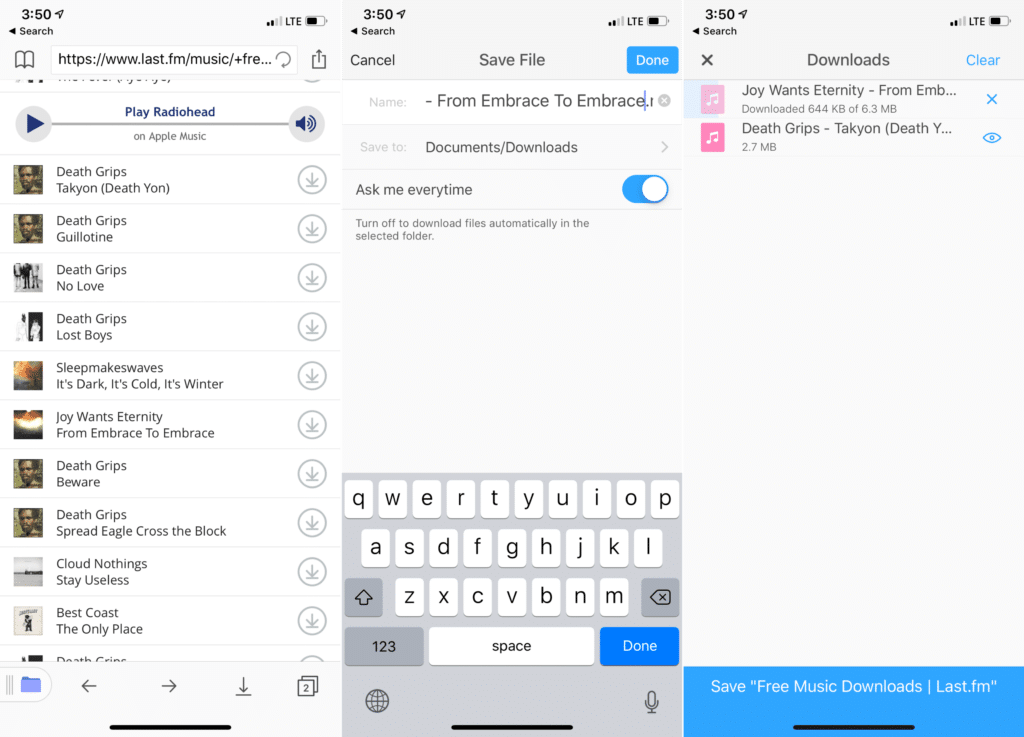
Use the Browser is Documents app to visit a link that hosts the MP3 file. It can be any website that has free music downloads. And then tap on the Download button to open the app’s download manager. Once the download is finished, you can tap on it to play the song or you can use the menu button to move it to another folder or to share it with an app like VLC.

Download: Documents by Readdle (Free)
3. Browser and Documents Manager

Browser and Documents Manager app is similar to the app we talked about above, but it comes with a smart downloader feature. If you go to a link like SoundCloud and you tap on an audio file to play it, the app will ask you if you want to download the media as an MP3. Tap on Download to start the downloading process. Once downloaded, you can play the media in the app, or share it with any app.

Download: Browser and Documents Manager (Free)
4. Safari in iOS 13


If you’re using iOS 13 on iPhone or iPadOS 13 on iPad, you don’t even need an app to download free music. We’ve talked in detail about how to download files using Safari before.

Basically, just navigate to the website that hosts the MP3 file and tap on the Download button. Safari will now ask if you want to download it. Tap on Download button to download the MP3. It will now be saved in the Files app. By default, the file is saved in the Downloads folder in iCloud Drive. But you can go to Settings -> Safari to change the download location. Once the music is downloaded, you can tap on the Share button to send the music to any media player like VLC.
5. Shortcuts


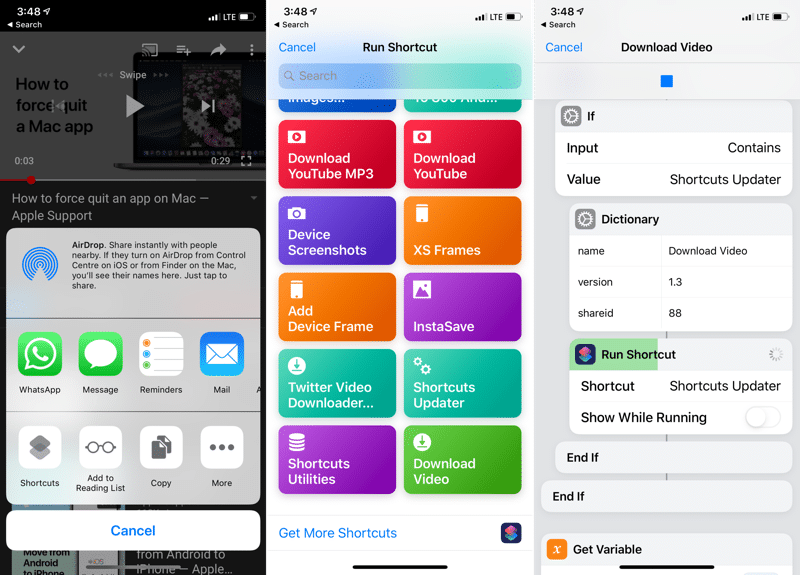
You can do a lot of cool stuff using Shortcuts. One of the great things about using shortcuts automation is to download files from the web. You can use a shortcut like YouTube Converter 2 to convert the online video into an MP3 and then download it on your device. There are a couple of shortcuts that you can use for different services and situations.

If you’re not familiar with Shortcuts app, read our guide here.

Download: YouTube Ripper Shortcut
6. Cloud Music Player


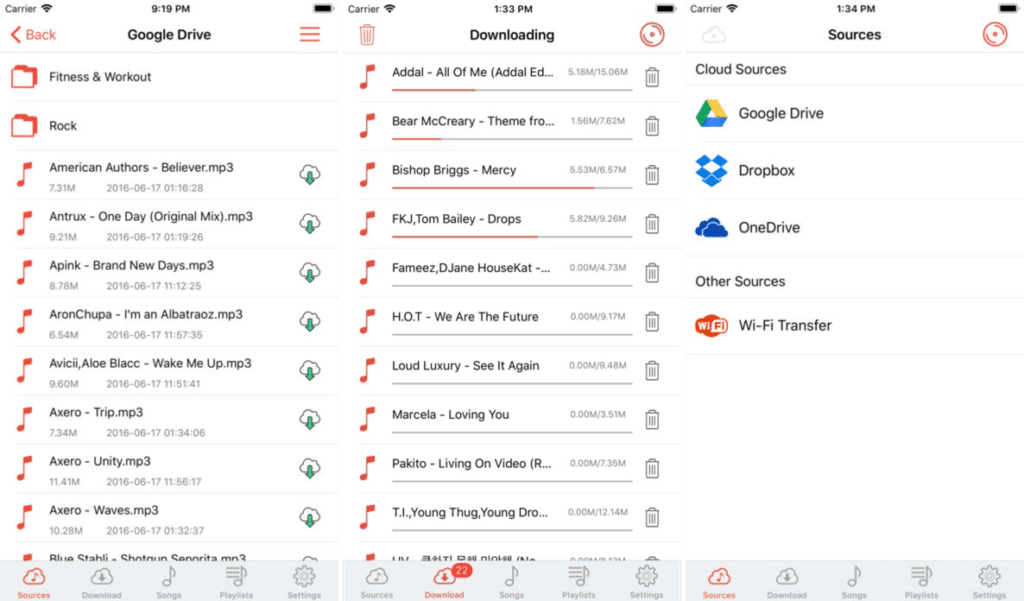
Cloud Music Player is not a source for searching and downloading music from the web. It does that for your personal music collection. If you’re not willing to spend $10/month for Apple Music, you can create your own streaming service using Dropbox, Google Drive, and this app. If you don’t want to involve the cloud, you can just use the Wi-Fi Transfer feature to transfer your music collection to this app.

Open the app, connect your cloud account, search for songs and start playing them. You can also download songs from your cloud storage directly in the app for offline playback.

Download: Cloud Music Player (Free)
Your Methods?

What are some of your favorite methods for downloading music for free on your iPhone or iPad? Share with us in the comments below.If you lost data after you updated to a new iPhone, you can always use Gihosoft iPhone Data Recovery to get the data back from the old iPhone or backup.You may also like: iphonerecovery.com


Thursday, July 25, 2019

Apple Asks Suppliers to Produce Components for 75 Million iPhones in the Second Half of 2019


For the second half of 2019, Apple’s suppliers are looking to produce components for 75 million iPhones. Apple is expected to have sold anywhere around 70 million to 80 million iPhones in H2 2018. Thus, the company is looking to produce a similar number of iPhones this year signaling a stable demand for its phones.

As is the tradition before a new iPhone launch, Apple’s key supplier Foxconn has increased the hiring for its factories in Shenzhen and is reportedly paying workers 10% more than what it did last year.

The company’s Asian suppliers are gearing up to crank out components for three new iPhone models to meet holiday-season demand, the people said, asking not to be identified citing internal estimates.

While Apple might have asked its suppliers to prepare 75 million iPhones, it does not mean the company expects to sell them all by the end of this year. Apple could ask its suppliers to adjust production depending on the demand based on the launch demand and the hype around it — something which it has been doing since the last two years. Yet, the move to ask its suppliers to produce components for 75 million iPhones is a bold one from Apple due to the slowdown in the global smartphone market, the ongoing trade war between the U.S. and China, and the relatively modest improvements that iPhone 11 series is going to bring to the table.

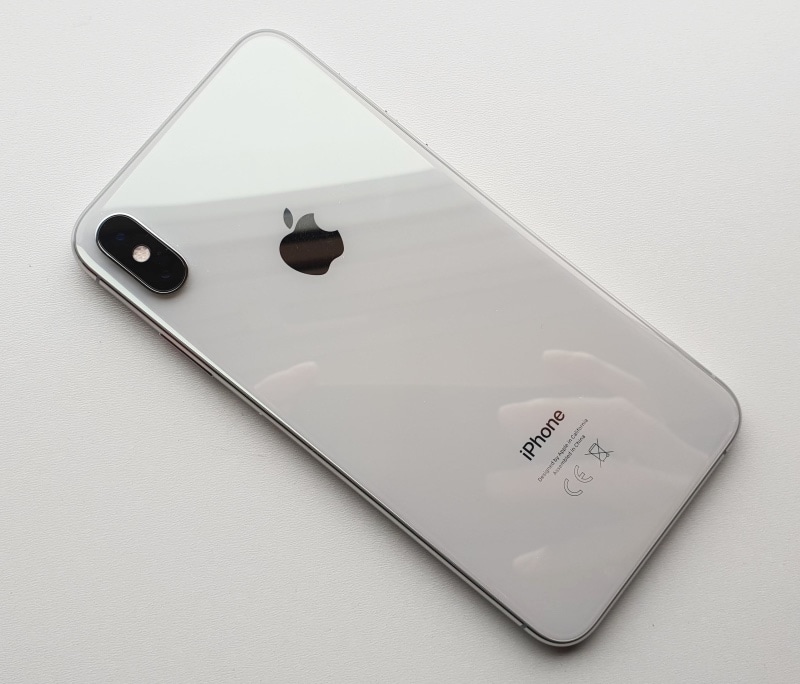
The 2019 iPhone 11 series will be powered by a new A13 chip. They will feature bigger batteries to account for the new reverse wireless charging feature. The iPhone XS and iPhone XS Max successor will also feature a triple-camera system which will include the addition of a new ultra-wide angle camera. The front TrueDepth camera system will also get an upgrade and will be capable of recording slow-motion videos. Apple will also reportedly ditch 3D Touch from its 2019 iPhone 11 lineup. It will try to make up for it with a new taptic engine that would provide better haptic feedback.Also Read:second screen apps

Also Read:watch free tv shows

[Via Bloomberg]

Tuesday, July 23, 2019

Top 3 Apple ID Remover


1. iCloudin - Bypass iCloud Activation Lock

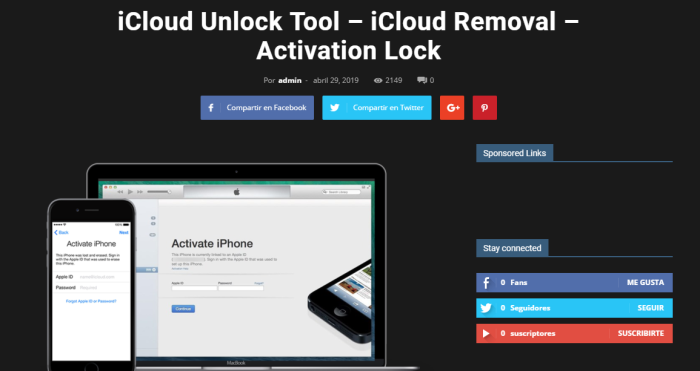
iCloudin is a popular Apple ID remover and supports all Apple devices. It assists in bypassing iCloud activation lock without hassle. You can reach out to its official website to find some useful tutorials freely. You can download it freely.


Pros:

1. It can bypass iCloud activation lock.

2. iCloudin works on all Apple devices.

3. You can learn the tutorials on their website or from YouTube.

4. Completely free software with a user-friendly interface.

Cons:

1. It's hard to find the information you needed from iCloudin website. It is a little messy.

2. If you want to bypass the security feature, it takes a risk to crash your devices.

3. It does not get a high rank according to the user feedback.

4. It requires a little skill. You need to learn from a bunch of tutorials to use the software.

5. The entire process takes about 20-30 minutes. It is a little bit longer.
2. Doulci - Professional iCloud Unlocking Tool

Doulci is a professional Apple ID remover that allows you to bypass the iCloud activation lock on your iPhone and remove the Apple ID when you forgot it. It uses a mirror activation server that activates your Apple device when connected to iTunes. It is user-friendly and easy to use. It supports iPhone, iPad and iPad touch.


Pros:

1. It can bypass iCloud activation lock.

2. With a user-friendly design, it is easy to operate.

3. It supports iPhone, iPad and iPod touch.

Cons:

1. You must fill out a survey to download the software.

2. The software is not updated for a long time. It may not support the latest iOS version, such as iOS 12, iOS 13.

3. Single function: it can only unlock Apple ID and iCloud account.
3. iCloud® Activation Lock™ Removal - Professional iCloud Removal Service

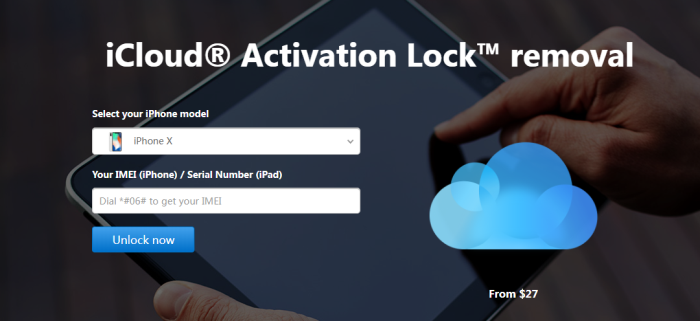
iCloud® Activation Lock™ Removal can bypass iCloud activation lock and remove Apple ID permanently from your Apple devices. You just need to offer the IMEI number of devices, then it will help to permanently remove the previous iCloud account. This tool supports all iOS versions and most iOS devices including iPad, iPod Touch, Apple Watch and iPhone later than iPhone 5.


Pros:

1. It can help to unlock iCloud activation lock with your IMEI number.

2. Permanently remove the previous iCloud account while allowing you to activate and set up the device.

3. The service received a great reputation according to user feedback.

Cons:

1. You may not know your IMEI number if you get stuck in an iCloud activation lock.

2. It does not support older iPhone models like iPhone 4/4S.

3. Single function: it can only unlock the iCloud account.

4. They require time to unlock your Apple devices, you should wait 72 hours.

Read more:Watch Thor Ragnarok For Free

Read more:instagram for pc

This article introduces the top 3 Apple ID removers in 2019. All of them feature a great capability to unlock your Apple ID and iCloud account. iMyFone LockWiper is the most convenient and versatile software that is a must-have for all iOS users. If you look for easy and cost-efficient software, iMyFone will be your best choice.If you lost data after you updated to a new iPhone, you can always use Gihosoft iPhone Data Recovery to get the data back from the old iPhone or backup.You may also like: iphonerecovery.com

Friday, July 12, 2019

Chimera Update Adds Support for iOS 12 – iOS 12.2 Jailbreak


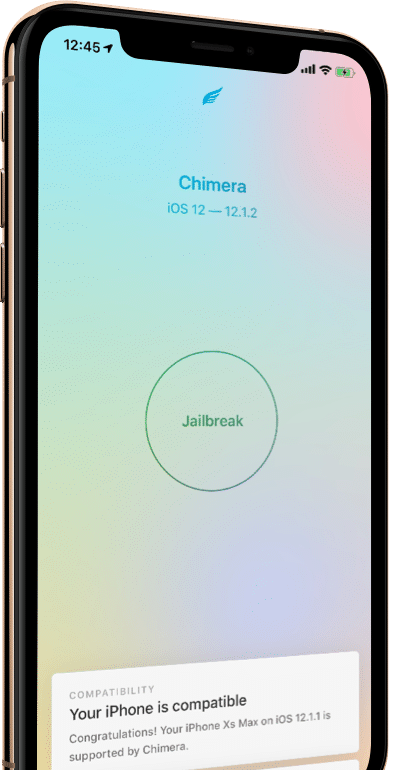
Following the release of an Unc0ver beta with Sock Puppet exploit, the Electra team has also updated Chimera jailbreaking tool with the exploit. This means the tool can be used for jailbreaking iPhones and iPads running iOS 12 – iOS 12.2.

Up until now, Chimera has supported jailbreaking all iPhones and iPads — including the iPhone XS and iPhone XR — running iOS 12 – iOS 12.1.2. Thanks to the new Sock Puppet exploit though, it can now jailbreak iPhones/iPads running iOS 12.1.3 – 12.2 as well.


Electra Team

@electra_team

Chimera 1.2.0 is now available on

https://

chimera.sh


, adding support for A9 - A11 devices on iOS 12.1.3 - 12.2


All devices on 12.0 - 12.1.2 are supported

670

11:38 PM - Jul 12, 2019

Twitter Ads info and privacy


Chimera

Introducing Chimera, the innovative new jailbreak from the Electra Team.

chimera.sh

343 people are talking about this

However, just like Unc0ver, the catch here is that the exploit only works for A9-A11 devices. This includes devices like the iPhone 6s, iPhone 7, iPhone 8, and iPhone X. Newer devices like the iPhone XS, iPhone XR, and 2018 iPad Pro lineup are not supported by Chimera. Given the exploit does not work on A12 Bionic powered devices, it is unlikely that we will see either Unc0ver or Chimera being updated with jailbreaking support for them.Sponsor ads:

Gihosoft RePicvid Free Photo Recovery Software provides a free photo recovery software for windows to help users recover the deleted or lost photo for free.

If you lost data after you updated to a new iPhone, you can always use Gihosoft iPhone Data Recovery to get the data back from the old iPhone or backup.You may also like: iphonerecovery.com


There are likely going to be a few stability issues on devices running iOS 12.1.3 – iOS 12.2 after the jailbreak. The Electra team is rolling out regular updates to fix them but if you value stability more than a jailbreak, you should wait for a few more days. This issue is also present with Unc0ver jailbreak and the problem is due to the Sock Puppet exploit being used.

Thursday, July 11, 2019

How to Fix Safari Won't Issue Open on Mac


Part 1. How to Fix Safari Won't Issue Open on Mac

If you are one of the users that have been facing the Safari issue on Mac and you have been looking for a solution to fix it, then you have come to the right place. After conducting our research, we have found 6 different ways to solve this problem. Carefully read the below-mentioned ways.
Way 1. Quit & Relaunch Safari

Maybe you are using the Safari and it suddenly stops working. This thing has happened with a lot of people and you really shouldn't worry about this. Simply quit the Safari and reopen it after a few seconds. When you will reopen the Safari, it might start working properly without making any further errors.


Way 2. Check the URL

You will not believe this, but a lot of people enter the incorrect spellings for the Safari browser and they fail to access the browser. This can because of the carelessness or it can also happen if the user is in some kind of hurry.

If your Safari browser cannot open, then you should check the URL that you have entered. Many times, it will be the incorrect URL that would've led you to this problem. So, all you need to do is to simply correct the URL and see if the browser is working correctly now.
Way 3. Clear Safari Cache

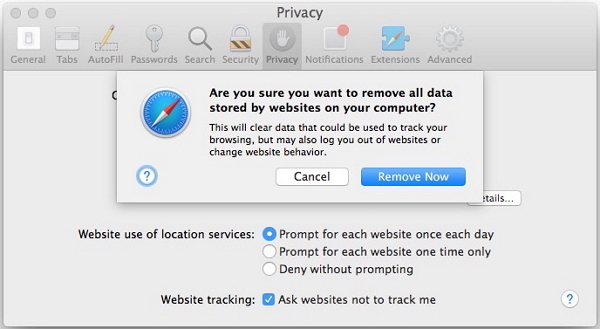
This is the data or info that the browser saves in the webpages to load the websites faster in the future. However, a lot of caches can also stop the Safari browser from working properly. So, you should also remove the cache of the Safari to see if it fixes the issue.

Step 1: Click on the Safari drop-down menu and choose Preferences.

Step 2: Click Privacy -> Manage Website Data.

Step 3: Click Remove All. Then click Remove Now.


Way 4. Change DNS Settings

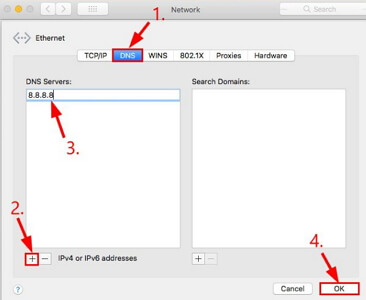
Domain Name System or DNS is very much similar to the phone book of the internet is a system that is used to translate the domains that you have entered in the browser to the IP needed to access that website. In case, the DNS assigned to a website is down then you might face different issues when trying to open it with the Safari. So, you can switch the DNS to a Google Server to fix the issue.

Step 1: Go to the Apple menu and choose "System Preferences".

Step 2: Choose "Network" in the control panel and then click the "Advanced" button.

Step 3: Click the DNS tab, then click the + button to add a server and type 8.8.8.8. Tap OK to complete.


Way 5. Use a Different Browser

As we have mentioned that there are other browsers too and anyone can use them. So, if the Safari isn't opening or not working properly on your device then you should try another browser. Changing the browser can easily solve your problem and you will be able to search for anything that you want.
Way 6. Update the Mac OS Version to Latest

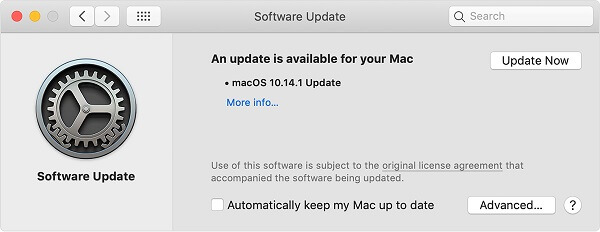
There are a lot of updates that come in the Mac OS. These updates are very crucial for the healthy working of your device. If anything isn't working the way it should, then you might need to update your Mac system.

Step 1: Choose System Preferences from the Apple menu, then click on the Software Update option to check for the updates.

Step 2: If any updates are existing, click the "Update Now" button to install the updates.


Part 2. What about Fixing Safari Issues on iPhone

Sponsor ads:

Gihosoft RePicvid Free Photo Recovery Software provides a free photo recovery software for windows to help users recover the deleted or lost photo for free.

If you lost data after you updated to a new iPhone, you can always use Gihosoft iPhone Data Recovery to get the data back from the old iPhone or backup.You may also like: iphonerecovery.com

Thursday, April 25, 2019

All Tips & Tricks on iMessage Download


Apple’s iMessage is used by many iOS users for sending audios, pictures, messages, etc to other iOS users for free. It does not require any Wi-Fi or cellular connection and this is the reason non-iOS users are always searching for different ways for using iMessage. But iMessage app is limited to Apple devices only.


Part 1. iMessage App Download


Part 2. iMessages Download to PC/Mac
Part 1. iMessage App Download

Many websites and platforms offer iMessage download for Windows option, but you end up getting spams, junk emails or unwanted ads. So, in this article, we will show you the best tips and tricks for iMessage app download.
iMessage App Download for Windows

If you are using a Windows PC, you can check the methods given below. These methods will allow you to download iMessage on your Windows PC.

Option 1. Use Chrome Remote Desktop

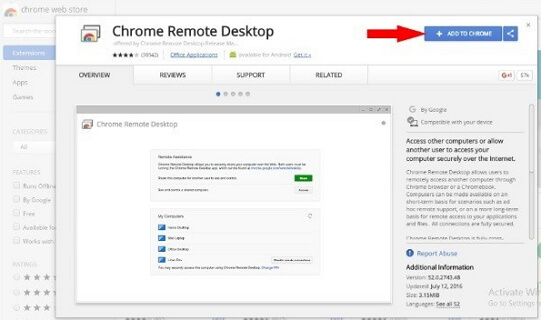
The iMessage download for Windows is possible using Chrome Remote Desktop. It is a browser extension on Google Chrome. For this method, you need two computers, preferably one Windows and another Mac. If there is no Macbook, you can use other emulators for trying this method.

Step 1: Download the Chrome Remote Desktop extension on Google Chrome of both devices.

Step 2: Go to Tools and find Extensions. Add Chrome Desktop Extension to the Chrome.

Step 3: Under Browser Apps section, open the app.

Step 4: Now, download and install Chrome Remote Desktop on the Macbook.

Step 5: Set the Security PIN on the Mac for accessing Windows screen.

Step 6: Next, find and click on Remote Mac on the Windows PC for running the shared screen on PC.


Option 2. Try iPadian Emulator

If you want to browse your iPad iMessages on Windows PC, you can try iPadian Emulator.

Step 1: Open your browser on your Windows PC and go to ipadian.com for downloading and installing the emulator.

Step 1: After the installation, open it on your PC.

Step 2: On iPadian, search iMessage app.

Step 3: Download the iMessage app on your PC.

Step 4: Now you can view your iPad’s iMessages on the Windows PC. Make sure that you have a strong internet connection.


Option 3. Get Bluestacks Emulator

Bluestacks emulator is known among the Android users, but you can use this emulator for downloading and viewing the iMessage history on your Windows PC.

Step 1: Download Bluestacks on your device and install it.

Step 2: After the installation, open it on your PC.

Step 3: In the Search box on Bluestacks, enter iMessage.

Step 4: You will see an interface like that of an App Store.

Step 5: Next, download iMessage and follow the steps to set it up on this emulator.

Option 4. Use Cydia Application

Many people use Cydia for jailbreaking the iPhone, but you can also use Cydia for downloading the iMessages on Windows PC. If your iPhone or iPad is running on iOS 12, this method will not work. Follow the steps below and download iMessage on Windows PC.

Step 1: Download Cydia in your iPhone as well as PC. Open Cydia and search for Remote Messages.

Step 2: Now, install Cydia. Go to Settings and get Remote Messages for $4. A pop-up window will appear asking for your authentication. Click on “Use Authentication” and authorize it.

Step 3: Create a username and password. You can also use your Apple ID with .333 at the end. Ensure that your PC and iPhone are well connected to a Wi-Fi network.

Step 4: Open the browser on Windows PC and enter the IP address. Don’t forget to add a colon at the end. You will see an interface where you need to fill in all the information.

Step 5: Once you fill all the details, the remote connection between iPhone and PC will be accomplished.


iMessage App Download for Mac

The above methods were for Windows PC. If you are searching ways for iMessage app download for Mac then follow the steps below.

Downloading iMessage on a Mac is very simple because the iPhone and the Mac have similar systems. Before proceeding, make sure that your Mac is running on 10.8 or higher version. Just open App Store and download Messages application on your device.


Part 2. iMessages Download to PC/Mac

Using the above methods, you can download your iMessages app to your Mac or PC.

If you have already downloaded iMessage app on your Mac and you need download the iMessages to your Mac, it will be easy for you.

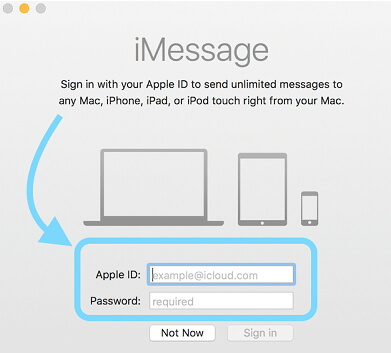
Step 1: Open Messages and enter your Apple ID credentials.

Step 2: When you sign in, the application will start scanning the message history in your Apple account. Now choose the message history you need. As soon as you do this, the selected messages will be synced on all Apple devices.


The above steps might seem to be difficult for you. Luckily, you can also download iPhone iMessages themselves directly to your PC or Mac using a professional third-party iOS tool.Sponsor ads:

Gihosoft RePicvid Free Photo Recovery Software provides a free photo recovery software for windows to help users recover the deleted or lost photo for free.

If you lost data after you updated to a new iPhone, you can always use Gihosoft iPhone Data Recovery to get the data back from the old iPhone or backup.You may also like: iphonerecovery.com

If you use android phones, please choose Gihosoft Android Data Recovery.With Gihosoft Android Data Recovery, no longer afraid of data loss!

Tips & Tricks about iPhone Virus Message


Apple iPhone are technologically advanced and very much sophisticated. That is why the chances of your iPhone getting infected with viruses are very rare.

But suddenly you see a surprising pop-up message-"iOS Security Breach! Virus detected on your iPhone" which asks you to tap on a link or call a number. This is where you have to be careful.

In this article, we will show you what you need to do when you get the iPhone virus message and how to avoid these scammers.


What to Do with the iPhone Virus Message?


What Will Increase Virus Risk on Your iPhone?


What to Do if There is a Virus on Your iPhone?


What if Losing Data in this Situation?
What to Do with the iPhone Virus Message?

The alerts that you get are never legit and they are created by scammers to get your iCloud account or credit card details. When you get a warning message, never tap on it.

Read on to find out what you can do with the iPhone virus messages.
Way 1. Close All Apps

First and foremost, close all the apps running in the background. You can check that in the app switcher.

For iPhone 8 and earlier models, double-press the Home button of your device.

For iPhone X and later models, swipe up from the Home screen.

This will activate the app switcher. All the apps that are currently open will be displayed. Swipe up on each app to close them.


Way 2. Clear Safari Browser History

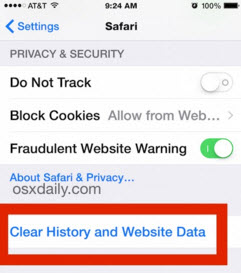
When you see the iPhone virus message, you must immediately clear the Safari browser history in your device. This will delete all the cookies that are saved when the pop-up message appeared.

Step 1: Open Settings and go to Safari.

Step 2: Tap Clear History and Website Data.

Step 3: You will be asked for confirmation. Tap Clear History and Data.

Step 4: The Safari browser history will be deleted.


Way 3. Toggle Airplane Mode on & off

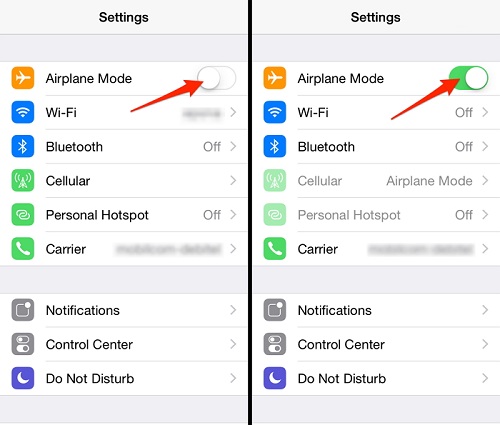
Putting your iPhone on Airplane mode for a few minutes will temporarily disconnect your device from the internet. Follow the steps below to toggle Airplane mode.

Step 1: Open Settings. Toggle on Airplane mode.

Step 2: After a few minutes, toggle off Airplane mode. You can also do this from the Control Center of your iPhone.


Way 4. Contact Apple Support Center

After you have completed all the steps given above, report the pop-up message to Apple Support Center. This will not only help in protecting your iPhone data but also you might not get these kinds of messages in future.
What Will Increase Virus Risk on Your iPhone?

The only viruses that are seen are the worms that can easily attack the jailbroken iPhone.

So, if you have jailbroken your iPhone, the chances are high that your device will get infected by viruses. You can also know how much of risk it is to get an iPhone virus on the basis of which antivirus software is present on your iPhone.

However, there are no such programs that will protect an iPhone from viruses. There are actually no antivirus apps in the App Store.
What to Do if There is a Virus on Your iPhone?

If you find that your iPhone is behaving in a strange manner then one or more of your apps in your iPhone has bugs and the app must be updated or deleted.

If the iPhone is jailbroken, it is possible, in rare cases, that your device is infected with the virus. Removing the virus must be tough and tricky, but you can follow the instructions given below and try to clean your device.


Back up your data and restore your iPhone to factory settings.


Restore the last backup to your iPhone.


Delete the apps that you doubt is infected with a virus.
What if Losing Data in this Situation?

Finally, you have got rid of the viruses on your iPhone. But what if you lose the data on your iPhone while fixing the issue?

With advanced technology, it is possible to recover the lost data on your iPhone even if you have not backed up your data. There are third-party tools that can securely retrieve the deleted data within a few minutes.

Sponsor ads:

Gihosoft RePicvid Free Photo Recovery Software provides a free photo recovery software for windows to help users recover the deleted or lost photo for free.

If you lost data after you updated to a new iPhone, you can always use Gihosoft iPhone Data Recovery to get the data back from the old iPhone or backup.You may also like: iphonerecovery.com

If you use android phones, please choose Gihosoft Android Data Recovery.With Gihosoft Android Data Recovery, no longer afraid of data loss!
Sunday, April 21, 2019

How to Listen to YouTube Music for Free on Your Google Home or Google Assistant Speaker


In April 2019, Google announced the launch of a free, ad-supported version of its YouTube Music streaming service for use with Google Home and other smart speakers that feature its voice-activated assistant.


Essentially, the free streaming tier means that you can listen to songs from the YouTube Music catalog, interspersed with occasional ads, on your Google Home or other Google Assistant-powered speaker right out of the box.


With YouTube Music and Google Home, you can ask Google Home to play the right music for any moment or mood, and YouTube Music will play a station customized to your tastes based upon your request. So you could say, for example, "Hey Google, play music for working out," and your speaker will fill the room with some upbeat tunes. Worth Reading:hacking apps


At the time of writing, free, ad-supported YouTube Music is available on smart speakers in the United States, Canada, Mexico, Australia, Great Britain, Ireland, Germany, France, Italy, Spain, Sweden, Norway, Denmark, Japan, Netherlands, and Austria. Google is also working to make the service available in more countries.


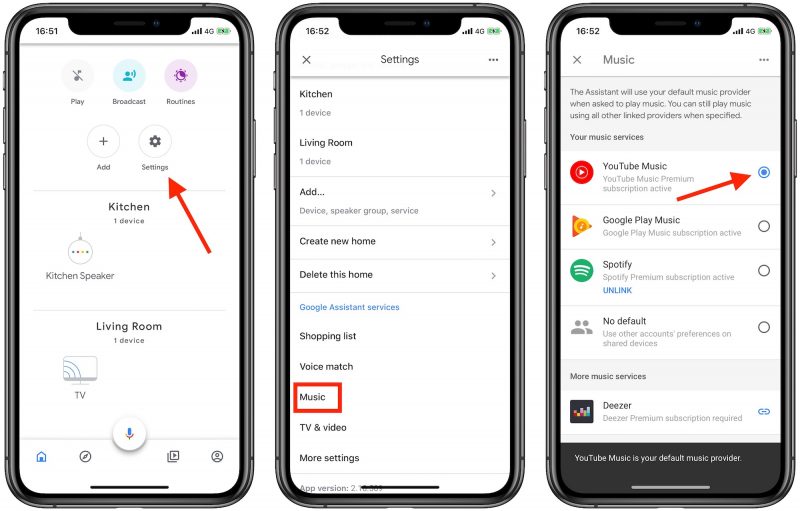
To enable free, ad-based YouTube Music on your smart speaker, simply follow these steps.


Launch the Google Home app on your iPhone, iPad, or Android device.


Tap the account Settings option on the app's main Home screen.


Scroll down and tap Music.


Tap YouTube Music to link the streaming service to your smart speaker and make it your default music provider.Sponsor ads:

Gihosoft RePicvid Free Photo Recovery Software provides a free photo recovery software for windows to help users recover the deleted or lost photo for free.

If you lost data after you updated to a new iPhone, you can always use Gihosoft iPhone Data Recovery to get the data back from the old iPhone or backup.You may also like: iphonerecovery.com

That's all there is to it. If you have an Echo device instead of a Google Home device, you can listen to Amazon's new free music service instead just by asking Alexa to play a station based on a song, artist, era, genre, or an Amazon Music global playlist.

Tuesday, April 2, 2019

Two-Way Wireless Charging and Larger Batteries Coming to 2019 iPhones


Apple's 2019 iPhones are going to have a two-way wireless charging feature that will allow the iPhone to charge other devices like the AirPods, Apple analyst Ming-Chi Kuoagain confirmed in a report sent out to investors today.


Kuo previously mentioned the feature briefly in a February note, and today he goes into a bit more depth about the suppliers who will benefit from the feature.


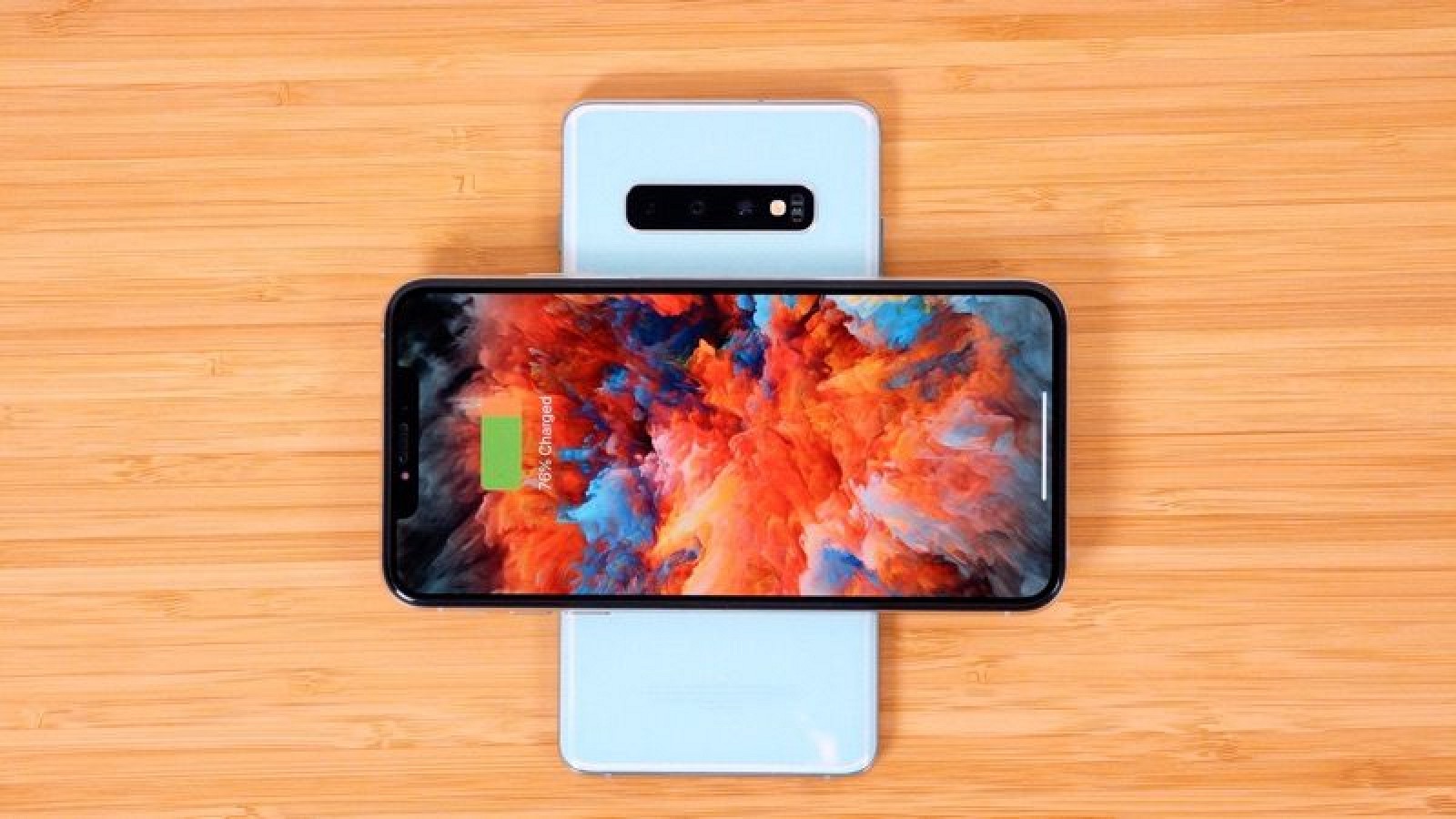
Two-way wireless charging as demonstrated in the Galaxy S10+


Two-way wireless charging, or bilateral charging, will let the Qi-based iPhones coming in 2019 charge another iPhone or the new AirPods with Wireless Charging Case. You'll essentially be able to charge any Qi-based device with your iPhone, as it will work as a wireless charger itself. From Kuo:

We expect the new 2H19 iPhone models will support two-way wireless charging. Though the iPhone is not the first high-end smartphone to be equipped with two-way wireless charging, this new function could make it more convenient for users to charge the new AirPods and create a better integrated user experience of the iPhone and AirPods.

This is a feature that Samsung has already debuted in its 2019 Galaxy smartphones, and in those devices, it's known as Wireless PowerShare. Wireless PowerShare allows the 2019 Galaxy smartphones to charge other Qi-based accessories, including the iPhone.


According to Kuo, suppliers such as Compeq (will supply battery boards) and STMicro (will supply two-way wireless charging controller) stand to benefit from Apple's inclusion of two-way wireless charging as it will increase the average selling price of key components.


To accommodate two-way wireless charging, Kuo believes battery boards included in 2019 iPhones will increase in size, as will battery pack capacity. Kuo says that battery capacities for the 6.5-inch iPhone XS Max successor could increase by 10 to 15 percent, while the battery capacity of the 5.8-inch OLED iPhone XS successor could grow by 20 to 25 percent. The iPhone XR successor isn't expected to see much of a gain, though, with Kuo predicting growth of 0 to 5 percent. Also Read:jihosoft Free iPhone Data Recovery

Sponsor ads:

Gihosoft Free iPhone Data Recovery:https://www.gihosoft.com/iphone-data-recovery-free.html

Gihosoft iPhone Data Recovery Free

Free iPhone Data Recovery Software for Windows/Mac

Recover up to 12+ types of files, including contacts, SMS, photos, WhatsApp, Viber, notes, etc.

Restore lost data from iOS devices directly or from iTunes and iCloud backup

Recover iPhone data lost due to iOS upgrade/jailbreak, accidental deletion, device lost or broken

Support all the latest iPhone, iPad and iPod Touch

Both Free and Pro version.

If you lost data after you updated to a new iPhone, you can always use Gihosoft iPhone Data Recovery to get the data back from the old iPhone or backup.You may also like: iphonerecovery.com

Also Read:Update Android

Also Read:Top 8 Best Alternative Websites to TamilGun in 2019

Also Read:Free Download FRP Bypass APK for Android 2019

Also Read:Best 10 Movie4k Alternative Websites for Movie Streaming 2019

Also Read:Top 32 Best Proxy and Mirror Sites to Unblock Fmovies 2019

Also Read:Best Torrent Search Engine Sites to Find Your Favorite Torrents 2019

Monday, March 18, 2019

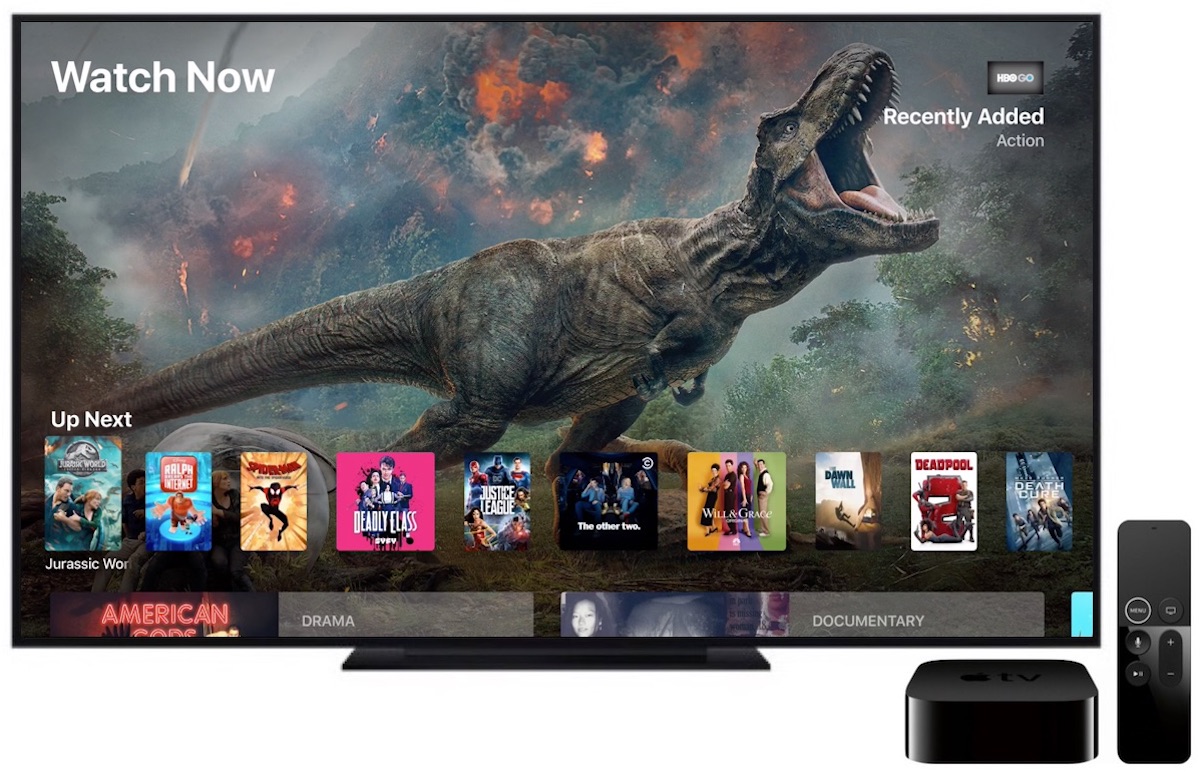
6 Easy Solutions to Fix ‘Apple TV Stuck on Apple Logo’

6 Easy Solutions to Fix ‘Apple TV Stuck on Apple Logo’2019

Smart devices can behave strangely at any time, and Apple TV is not exempted from this. Many things could go wrong with your Apple TV such as not playing sound, or playing video or stuck on Apple logoscreen. Of course, if your Apple TV is stuck on Apple Logo, it is a frustrating thing to experience, and you should find something to do about it.

Should your Apple TV ever get stuck on Apple logo or does not play anything, there are some things you can do to fix the problem. It could be a hardware problem or software problem, and the solutions we have highlighted here can solve the problem of Apple TV stuck on Apple Logo. Let’s get right to it.


Tip 1. Check the Power Supply


Tip 2. Change Display Mode


Tip 3. Restore Apple TV to Factory Settings


Tip 4. Restore Apple TV Using iTunes


Tip 5. Fix ‘Apple TV Stuck on Apple Logo’ Without Data Loss


Tip 6. Contact Apple Support
Tip 1. Check the Power Supply
Constant Power Supply

If your Apple TV is stuck on Apple logo, first check if the TV is getting enough power supply to power on. Check the status light if it is on. If the status light is not on, press the remote to make it flash by waking up your Apple TV.

If nothing happens, you can disconnect the power cord from your TV and wait for a few seconds and then reconnect the power cord to the power outlet. If your Apple TV is still stuck on Apple Logo after this, follow the next step.


Tip 2. Change Display Mode

Changing the video resolution can also fix the problem of Apple TV stuck on Apple Logo or black screen. Use the remote to change the display mode by changing video resolution.


Tip 3. Restore Apple TV to Factory Settings

Restoring your Apple TV to factory settings can be done through the steps below.

For Apple TV 4K or 4th Generation


Go to Settings. Select “System” and Choose “Reset.”


Choose the option for reset between “Reset” and “Reset and Update.”

Reset only returns your Apple Tv to factory settings and does not require an internet connection while “Reset and Update” will return your Apple TV to factory settings and at the same time install software updates.


Make sure that your Apple TV is plugged throughout the Reset process.

For 3rd Generation Apple TV


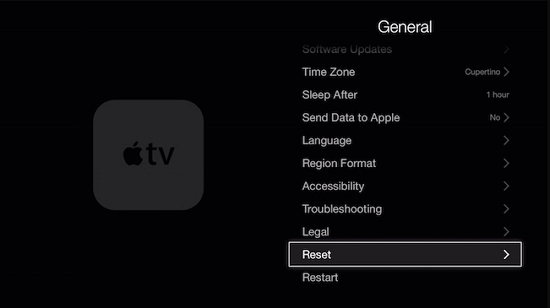
Navigate to “Settings”. Select “General” and then, “Reset.”


Choose your Reset option between “Reset all Settings” and “Restore.”

“Reset All Settings” resets all of your account configurations and accounts while “Restore” option restores the Apple TV to factory settings and updates the tvOS.


Ensure that your Apple TV remains plugged to power until the process is complete.


After you have finished resetting or restoring your Apple TV, you can then set it up all over again.
Tip 4. Restore Apple TV Using iTunes

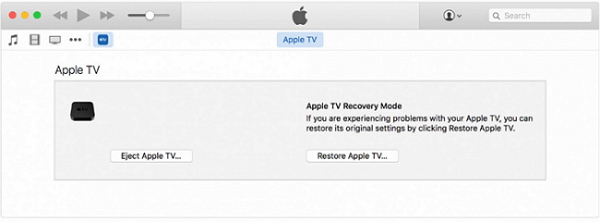
To fix the problem of Apple TV stuck on Apple Logo, you can try synchronizing the Apple TV with a Windows PC or MacBook and do a force-restore using iTunes. Follow the steps below.


Connect your Apple TV using a USB cable to your Windows PC or MacBook.


Launch iTunes.


Click on the “Devices” menu and select Apple TV.


Click on “Next” and then, “Restore.”


Tip 5. Fix ‘Apple TV Stuck on Apple Logo’ Without Data Loss

If you have attempted all of the methods above and your Apple TV stuck on Apple logo still seems not to be fixed then, it is time for you to try a third-party software that fixes tvOS issues without losing data. This tool supports all tvOS versions including the newest Apple TV models.Also Read:Top 9 Best Alternative Websites to AudioBook Bay in 2019
Also Read:4 Best iOS Cleaner Apps to Clear Junk on iPhone/iPad in 2019
Also Read:How to Make Your Phone Number Private on Android or iPhone
Also Read:How to Fix Your iPhone Microphone Not Working (iOS 12 Supported)

Apple Has Wrapped Filming on Five Original TV Shows Ahead of Streaming Service Launch


Apple Has Wrapped Filming on Five Original TV Shows Ahead of Streaming Service Launch
In one week, Apple will host a media event in California focused mainly on details about its upcoming TV streaming service. This week, The New York Times published a report about the state of a few shows on the service, hinting at which ones might be available at launch, the issues some partners have with Apple's plans, and more.


According to the story, around 11 projects have either completed filming or are nearing the end of filming, meaning they are the likeliest to appear in the "first wave" of shows on Apple's service. While we'll get the first glimpse at Apple's streaming service next week, the full service isn't expected to launch until later in the year.


Shows that have finished shooting include "Are You Sleeping?" starring Octavia Spencer; Ronald D. Moore's "For All Mankind"; M. Night Shyamalan's thriller series; Charlie Day and Rob McElhenney's unnamed comedy; and "Dickinson" starring Hailee Steinfeld. Looking forward, the number of original Apple productions is expected to increase in 2020.


Apple is said to be using this event to show customers "just how many shows [it] has pulled together," and that its streaming service will be worth checking out at launch. Combined with content purchased from third parties, Apple's offering could put it on par with the size of Hulu, Showtime, or FX, according to The New York Times. Previous rumors have suggested the launch lineup would be predominantly third party content.


More than a dozen people who have had dealings with Apple's TV service did reference concerns about the project in this week's report. Many working with Apple have received "little or no information" regarding the time frame of their shows' release dates, other than vague statements like "later this year, probably fall." Apple has also not divulged marketing plans to its partners.

Apple’s entertainment team has not been totally opaque. It has provided feedback to individuals involved in the shows, but it has been tight-lipped about the marketing and rollout plans. The March 25 event may allay Hollywood’s concerns, but several people involved in the new programs have interpreted the lack of communication as a sign that there may not be a clear game plan.

Apple has also reportedly been "squeamish" when it comes to the portrayal of its own technology in the shows. The company is said to ask specific questions about how iPhones or MacBooks will be used, suggesting that they prefer them to be seen in positive situations.


Apple's "It's Show Time" event will kick off on Monday, March 25 at the Steve Jobs Theater on the Apple Park Campus in California. As with most Apple events, it will start at 10:00 a.m. Pacific Time or 1:00 p.m. Eastern Time. The event is also expected to include the unveiling of its expanded Apple News service.


Also Read:How to Fix Windows was Unable to Format SD Card/USB Drive

Also Read:What Is IDP.Generic and How to Fix Avast Infection Alert
Also Read:Top 5 Best Free File Recovery Software 2019 for Windows and Mac

Also Read:How to Recover Deleted Photos from Nikon DSLR (JPEG and NEF)


Also Read:Top 11 Sites to Download Paid Apps Free for Android, iPhone, Windows, Mac 2019

Monday, March 4, 2019

Reset iPad Restrictions Passcode with iTunes 2019


Reset iPad Restrictions Passcode with iTunes

You can also reset your Restrictions passcode with iTunes. The process may seem a bit lengthy:

Step 1. Connect your iPad to your computer. And launch iTunes if it’s not already launched on your computer.

Step 2. Once iTunes is launched and your iPad is detected, turn off your iPad.

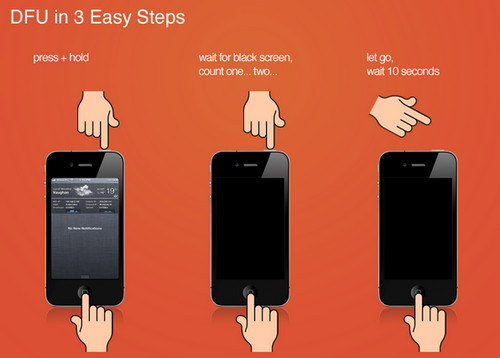
Step 3. To boot your iPad into recovery mode, press the Home and Power buttons and hold both buttons for at least ten seconds. Once you see Apple logo on the screen, release both buttons. Your iPad will be booted into recovery mode and iTunes will recognize it.


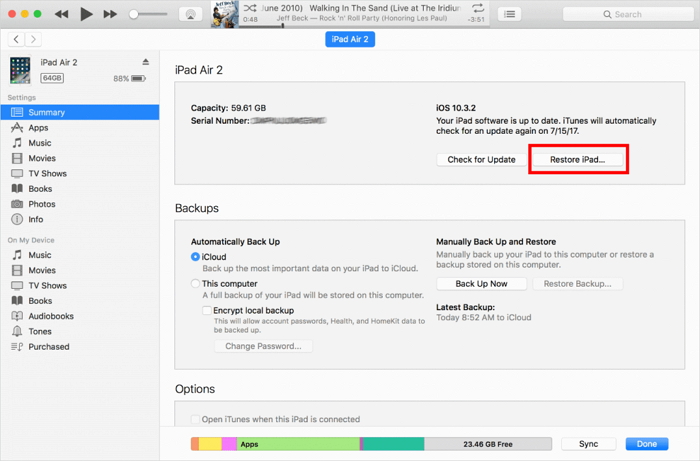
Step 4. Now click on the Restore iPad option in iTunes to begin the reset process. Your iPad will automatically reboot once the process completes.
Also Read:How to Fix the “Black Screen of Death” on iPhone XS/X/8/7Also Read:How to Transfer Data from HTC to Samsung Galaxy S7/S7 Edge/Note7


Sponsor ads:

Gihosoft Free iPhone Data Recovery:https://www.gihosoft.com/iphone-data-recovery-free.html

Gihosoft iPhone Data Recovery Free

Free iPhone Data Recovery Software for Windows/Mac

Recover up to 12+ types of files, including contacts, SMS, photos, WhatsApp, Viber, notes, etc.

Restore lost data from iOS devices directly or from iTunes and iCloud backup

Recover iPhone data lost due to iOS upgrade/jailbreak, accidental deletion, device lost or broken

Support all the latest iPhone, iPad and iPod Touch

Both Free and Pro version.

If you lost data after you updated to a new iPhone, you can always use Gihosoft iPhone Data Recovery to get the data back from the old iPhone or backup.You may also like: iphonerecovery.com

If you use android phones, please choose Gihosoft Android Data Recovery.

With Gihosoft Android Data Recovery, no longer afraid of data loss!
Must read:Youtube video downloader for pc

Gihosoft RePicvid Free Photo Recovery Software provides a free photo recovery software for windows to help users recover the deleted or lost photo for free.

Jihosoft Android Data Recovery: the best Android Data Recovery software for Windows and Mac to recover deleted contacts, messages, photos, videos, WhatsApp and etc from Android devices.Tips:How to transfer messages from iPhone to iPhone

jihosoft Free iPhone Data Recovery

Why iTunes Can’t Find My Music


Why iTunes Can’t Find My Music
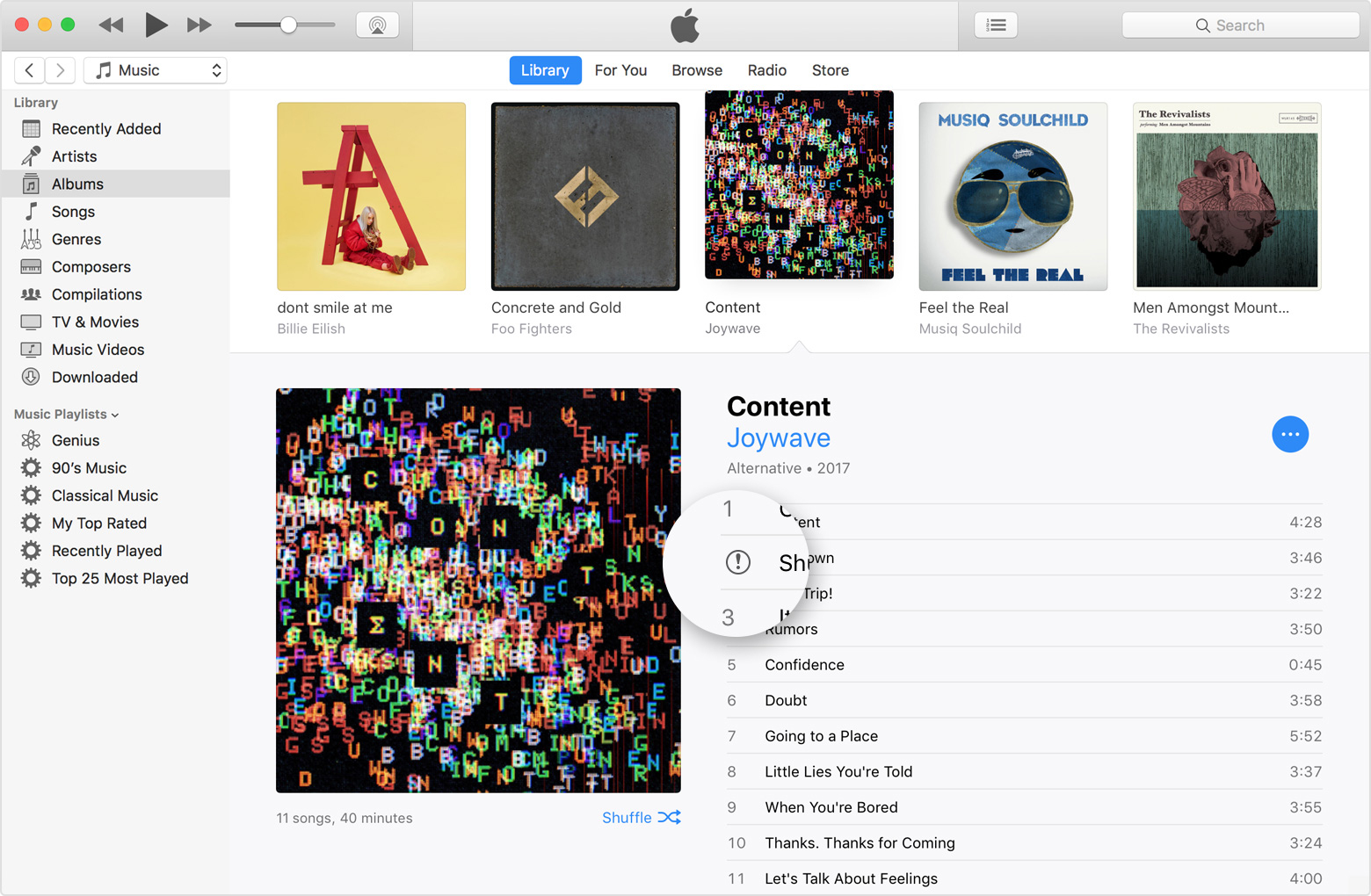
1 Exclamation Mark

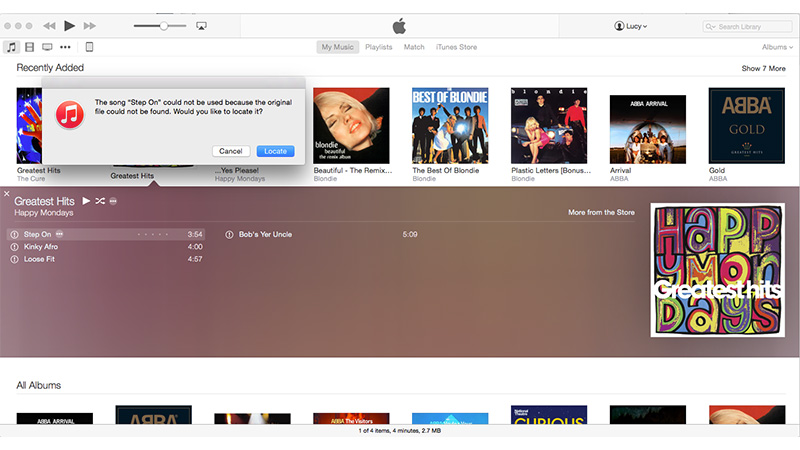
The iTunes exclamation point is a way of iTunes telling you that the particular track you are trying to play is missing. iTunes usually stores your music files on your hard drive. This music file collection is known as the iTunes Library. The collection will exist in the Home Directory: ~/Music/iTunes/iTunes Media/Music.

Every time you add a music file to your iTunes, the music file is supposed to be added to iTunes Media directory. The track itself is then added to the list of tracks available on iTunes. When you tap on the track on the list, it should start playing.

If the music file disappears for any reason from your iTunes Media folder, iTunes will lose track of the file and hence display an iTunes exclamation point. Some of the reasons why the music file might go missing include deleting the track or moving the folder. The iTunes exclamation point is like a way of iTunes telling you “Hello, I remember having this music track, however, I can’t find the file to play it right now.”


2 Hidden Purchase

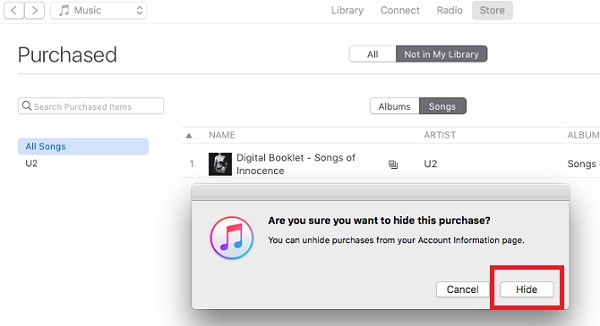
This is the most common case for people who are experiencing the iTunes can’t find my music issue. This can be frustrating since you have already spent your money to buy a music track but you still can’t figure out how to enjoy it. A hidden music file won’t be displayed in your music track list on iTunes. The good news is that hiding a music track does not delete it. You can unhide any music track quite easily. We will be showing you how this can be done.

Also Read:Best 6 Photo Organizer – Photo Organizing Software for Windows & Mac

Also Read:10 Best Free Audiobook Apps for Your iPhone or iPad in 2019

Also Read:How to Fix Insufficient Storage Available Problem on Android

Also Read:How to Recover Deleted Contacts with Gmail Account on Android


Part 2: How to Fix iTunes Can’t Find My Music
1 Locate iTunes Music File

This solution will be applicable if you are seeing an iTunes exclamation point next to your music tracks/track. Follow the steps below to locate your music file:


Launch iTunes and double-click the missing file.


Tap Locate.


iTunes opens a window. Use this window to locate the missing music file in the iTunes Media folder. If the music track is not available in the iTunes Media folder, import it again.


Click Open and try playing the track again on iTunes.


2 Unhide a Purchase

If the iTunes can’t my music issue is as a result of your purchased music tracks being hidden, follow the steps we have outlined below to unhide the music:


On your computer, launch iTunes.


If you aren’t signed in, tap Store and then Sign in. Input your Apple ID and password and then tap Sign In button.


Select Store and then View My Account. If asked, enter your password again.


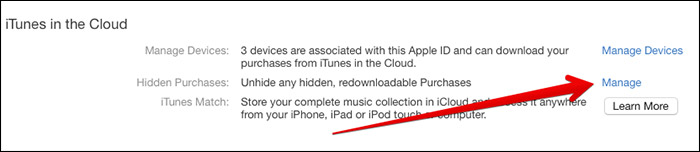
On the Account Information page, click Manage Hidden Purchases.


Click Music at the top of the page.


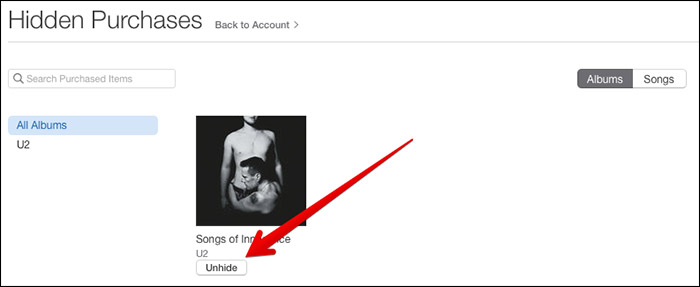
Your hidden music tracks should be available. Tap the Unhide button next to a music file you would like to unhide.


Also Read:8 Best PDF Reader & Editor Apps for iPhone and iPad in 2019


Also Read:How to Transfer Photos & Pictures from iPhone to iPhone/iPad

Print Calendar from iPad


Calendars play a significant part in our lives as they keep us on track with our day to day tasks. There is so much going on in our work, personal, and social experiences and sometimes it gets hard for us to keep up.

However, technology has made it very convent for us to log our tasks and events by providing us with virtual calendars. We may need a calendar which is almost always in front of our eyes.

For this purpose, the best idea is to print your calendar and hang it up at a place where you can see it each time to pass by. In this post, you will learn how to print calendar from iPad.


Part 1: Print Calendar from iPad without Enabling Calendar Sync


Part 2: Print Calendar from iPad with Enabling Calendar Sync


Part 3: All-in-One Way to Print Calendar from iPad on Windows/Mac


Part 4: Official Way to Print Calendar from iPad with AirPrint
1: Print Calendar from iPad without Enabling Calendar Sync

This is the procedure that you need to follow when your calendar is not synced to iCloud.

Step 1. Open the settings of your iPad. Then tap at your name which is located on the top of your iPad screen.

Step 2. Then click on iCloud and switch on “Calendars” by sliding the button until it turns green. This can be done by tapping on the switch as well.

Step 3. Then, on your Windows laptop go to https://www.icloud.com and log in with your Apple ID. Make sure to use the Apple ID which is already logged in your iPad.

Step 4. After you are logged in, click on the calendar app, and select the month that you want to print. Next, you have to take a screenshot of that month. For that purpose, press the window key along with the PrtScr key together and save it.

Step 5. Open that screenshot from the location or folder and tap on the “print” option located in the “File” drop-down menu.


2: Print Calendar from iPad with Enabling Calendar Sync

The second method of printing the calendar from your iPad involves being synced and logged in to your iCloud. To learn how to print calendar from iPad on Mac, just follow the steps given below:

Step 1: First, you must sign in with the same Apple ID as your iPad on the iCloud of your Mac computer.

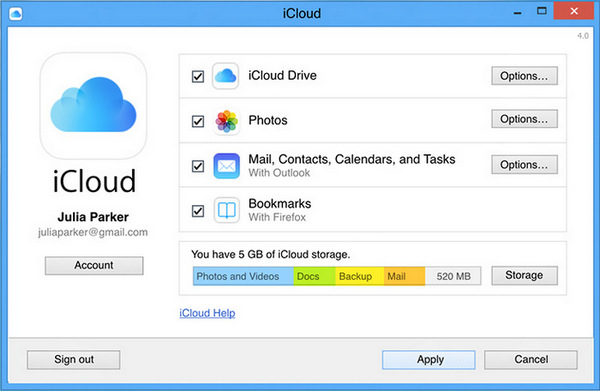
Step 2: After logging in both of your devices with the same Apple ID, sync your iPad calendar on your Mac. To sync on your iPad, go to setting, and click on your name and turn on the “Calendar” option by tapping into iCloud. For syncing on your Mac, go to your system preferences, go into your iCloud settings and then check the “Calendar” option.

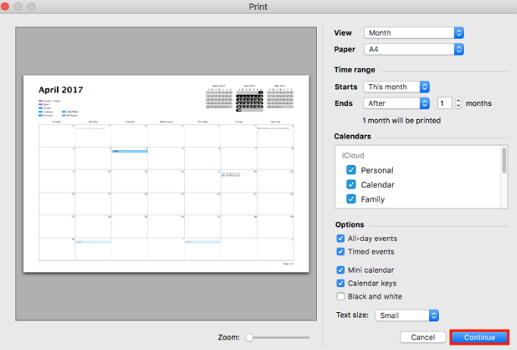
Step 3: Once you have enabled the sync on both of your devices, you will automatically be able to access your iPad calendar on your Mac. You can print it by tapping on the ‘print' option available in the ‘File' drop-down menu.


3: All-in-One Way to Print iPad Calendar on Windows/Mac

Other than the methods given above, you can also print calendar from your iPad on your Windows or Mac even if you have lost them.
Also Read:How to Change Message/iMessage Background on iPhone with/without Jailbreak
Also Read:What is iTunes Helper & How to Disable it from Windows/Mac PC

How to Delete Old iCloud Account from iPhone (Password Needed)


How to Delete Old iCloud Account from iPhone (Password Needed) 2019

Of course, if you don’t have the password for old iCloud account. The follow way is not the right one for you. But if your know the password, just follow these steps to sign out old iCloud account from your iPhone/iPad/iPod touch.

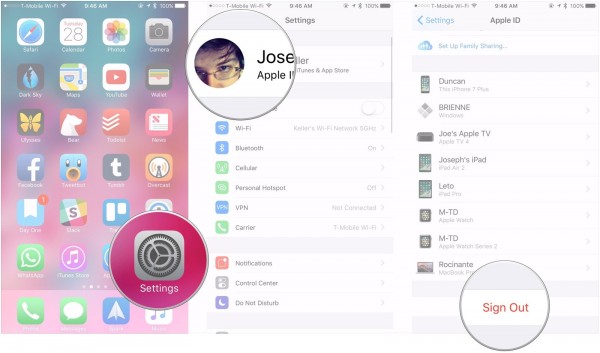
Step 1: Open Settings app on your iPhone.

Step 2: Tap [your Apple ID name] which is at the top of the screen.

Step 3: Scroll down to the bottom and tap “Sign Out”.


Step 4: Then click “Delete Account”.

Step 5: Enter the password of your iCloud account and tap “Turn Off”. It will take some time to sign out of iCloud. That’s it.

But note that, to delete iCloud account, please make sure your iPhone has stable network connection.
Conclusion

Deleting an old iCloud account from your iPhone can be quite easy to do. But without password, you only have one choice. That is why we recommend iMyFone LockWiper for you. It deserves your trial. If you never tried, click download buttons here to get started.

DownloadDownload
Also Read:8 Best PDF Reader & Editor Apps for iPhone and iPad in 2019
Also Read:How to Transfer Photos & Pictures from iPhone to iPhone/iPad

Sunday, March 3, 2019

Manual Solutions to Fix iTunes6464.msi Cannot Be Found 2019


Manual Solutions to Fix iTunes6464.msi Cannot Be Found

Here are some manual solutions you can try:
a.Check Your Hard Disk for Any Errors

Many users were able to solve the issue by fixing the hard disk errors via CMD of Windows. It is recommended that you check your hard disk for any errors and fix them. It’s a straightforward process.

Follow these instructions:

Step 1: On your Windows PC, open Command Prompt (CMD) via Start Menu.

Step 2: Run it as Administrator.

Step 3: Once its launched, type chkdsk /r /f and press Enter key of your keyboard.

Step 4: Now restart your computer. Windows will scan for hard disk errors and fix them automatically (if detected).


b.Check the Windows Installer Service

If for some reason Windows Installer service is stopped, then you might face iTunes6464.msi cannot be found error when installing iTunes. Starting this service manually will solve the issue.

Follow these instructions:

Step 1: Open Services app on your Windows PC via Start menu.

Step 2: Now on the list of services, find Windows Installer and double-click on it.

Step 3: On the General tab, see if the service is running.

Step 4: If the service is stopped, start it by clicking the Start button and then clicking OK. Now try to install iTunes. The problem should be fixed now.


c.Delete the Registry Key

The problem can also occur due to a corrupted registry file/value associated with iTunes6464.msi. If that is the case, then deleting that specific registry key will solve the issue.

Follow these instructions:

Step 1: Press Win key and R on your keyboard simultaneously, the Run dialog will open.

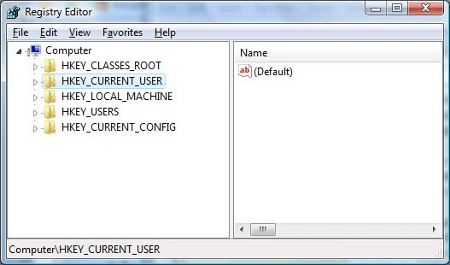
Step 2: Now type regedit in the textbox and press Enter, the Registry Editor will open.

Step 3: In the Registry Editor, find iTunes6464.msi via Edit > Find option. You will find the registry in a location like this: HKEY_LOCAL_MACHINE\SOFTWARE\Classes\Installer\Products\{a string of numbers and letters}\SourceList

Step 4: Now right-click on the registry key and click on Delete. The problem should be solved now.


Conclusion

‘iTunes6464.msi cannot be found’ is an annoying issue that prevents iTunes from installing. Fortunately, there are a number of solutions for this problem. One of the best and the easiest solutions is to use a third-party iTunes repairing software called iMyFone TunesFix. It will help you solve the issue automatically, without any hassles. There are some manual solutions as well that you can try. These include checking your hard disk for errors, manually starting the Windows Installer service, and deleting the registry key associated with iTunes6464.msi file. It is highly recommended that you try TunesFix first to solve this issue because it is a fast, efficient, and automatic way to solve the problem.Also Read:Download the Latest Version of Odin Flash Tool for Samsung Devices
Also Read:How to Create an Apple ID without Using a Credit Card
Also Read:How to take a screenshot on any Android phone
Also Read:Top 5 Legal Websites to Download Free Ringtones for iPhone XS/X/8/7/6s/6
Also Read:Download the Latest Version of Samsung Kies for PC and Mac OS

Thursday, February 28, 2019

Fix iTunes Could Not Backup or Restore


We can totally understand the pain and frustration you undergo when you are trying to backup your iOS device data (including iOS 12) onto your computer or restore an iTunes backup to your iPhone, but suddenly the iTunes could not back up or restore the iPhone because an error occurred while reading or writing. This problem also happens to the users who are using iOS 12. This problem is prevalent mostly during data backup and restore using iTunes. Don't worry now since we would like to assist you to fix the problem with the following solutions.
2. Other Solutions to Fix iTunes Could Not Backup or Restore
Sponsor ads: Transfer Music from Android to Android
Apart from iMyFone iTransor we would like to introduce you to the following solutions in order to troubleshoot the problems with iTunes. As iTunes could not backup or restore the iPhone because an error occurred while reading from or writing to the iPhone, these solutions would help you to a great extent in minimizing any kind of inconvenience for you while restoring or backing up iPhone data.
2.1. Update iTunes

When iTunes could not backup or restore iPhone, the out-dated iTunes might be the reason. Ergo, we advise you to check if the iTunes is updated. If not, update it right away to get the backup and restore process done smoothly. Here is how you can do this. Follow the steps according to the PC you own.

Windows Users:


Launch iTunes and click on 'Help' from the menu bar.


Choose 'Check for Updates' and install the latest iTunes' version if any updates available.Gihosoft Free iPhone Data Recovery:iphonerecovery.com


Mac Users:


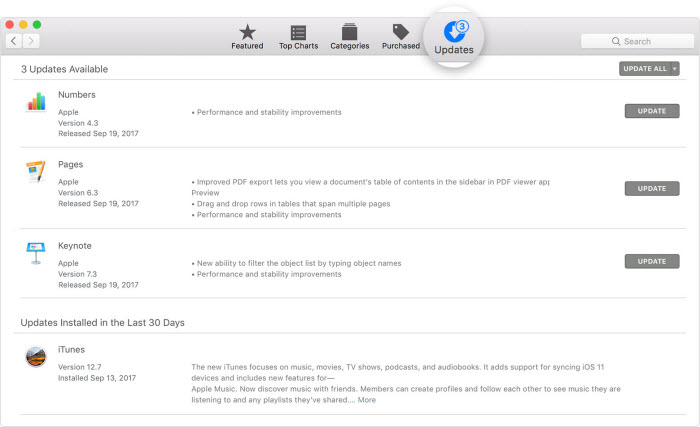
Go to the 'App Store' in your Mac.


Now, choose 'Updates' option at the top.


Look if there is any update present. If yes, then make sure to install it.


2.2. Delete or Move the Old iTunes Backups

You can either delete or move the old backup files from iTunes to fix this issue. Deleting corrupted backups will make iTunes work for you.Sponsor ads:How to Fix “The action can’t be completed because…”

Gihosoft Free iPhone Data Recovery:iphonerecovery.com

If you use android phones, please choose Gihosoft Android Data Recovery


For Windows, go to 'Edit' > 'Preferences' > 'Devices' > 'Delete Backup'.


And for Mac, open 'iTunes' > 'Preferences' > 'Devices' > 'Delete Backup'


If you don't want to delete the files, just right click on the backup file and click on 'Show in Finder' option and simply move that particular backup file to some other location.
2.3. Try Another Computer

Maybe the computer you are making use of is the culprit. You can try the backup process using another computer. This should work if the problem is with the system. Take help from your friend by borrowing his/her computer.


2.4. Clean the Space of Your Computer

If still you get the pop-up error "The iTunes could not backup the iPhone because an error occurred while reading from or writing to the iPhone", please note that iOS backups take at the minimum of 1 or 2 GB space. Considering this, we would like to suggest you to free up your system's space. Make sure to clear up at least 5 GB space in your system.Sponsor ads:Check Who Viewed Your Facebook Profile?
Sponsor ads:Find Songs by Humming Online with Web/Mobile Apps
2.5. Using iCloud

Here is the last recommendation. You can try iCloud for backup and restore if iTunes could not backup or restore iPhone due to reading and writing error. However, iCloud only offers 5GB of storage which could also restrict you to backup data beyond this size. The solution is, you can purchase more space if you have the more data than 5 GB. This method is a little time consuming. Another thing you should bear in mind is that iCloud backup process will need a stable and powerful internet connection. Therefore, you should take help of iCloud as a last resort if iTune fails to make backup due to reading/writing error.


You may also like:

macOS Catalina Is Causing Issues with Select eGPUs

macOS Catalina is apparently breaking many apps. Users have reported that they are facing problems after updating to macOS Catalina with...